AI speaker detection
This section is part of the AI Live Streaming Manual.
Introduction
Purpose
Detecting and identifying speakers serves a double purpose for both closed captions (and/or transcriptions for on-site participants) and speech translations.
- In closed captions and transcriptions: each known speaker is identified by name when they begin speaking (following a different speaker). This allows the viewer to immediately see who is speaking. This is important at events where speakers alternate or where conversations take place.
- In speech translations: the AI voice matches the gender of the speaker, and different speakers are represented by distinct AI voices. As a result, every transition to a new speaker becomes immediately audible in the AI translations. This way, AI translation listeners can intuitively grasp the flow of a conversation better. By assigning the speaker's gender to the AI voice, listeners can gain a clearer sense of who is speaking.
Disclaimer: currently, multiple AI voices exist for widely spoken languages, but this is not yet the case for all smaller languages. If a speech translation language only has one or a limited number of AI voices, the variety of speaker voices for that language will be limited.
Managing and Using Speakers
Speakers are managed in two places within an account:
- At the Account level, via the 'Account' > 'Speaker Voices' menu. This list contains all known speakers. They are identified for your account, and therefore can be added to any of your live events. This provides a general way to manage speakers, independent of any specific event. Adding speakers at account level has no impact on detection, if you don't add them to an event.
- At the Event level, via the 'Event' > 'Speakers' menu. Here, you can add known speakers (from your account) who will appear in the live stream. In addition, Clevercast can automatically detect unknown speakers; this page lets you identify and manage these detected speakers. When new speakers are detected and (auto-)approved here, they are immediately treated as a known speaker.
Identifying speakers by name during an event
Clevercast uses AI to recognize speaker voices during a live stream. This feature is generally known as 'diarization'. There are three ways you can use diarization in Clevercast:
- Diarization without speakers. In this case, Clevercast detects speakers in the live stream, but does not identify them. This results in a new line in closed captions starting with "--", indicating a different (unknown) speaker. In on-site transcriptions, a white line is shown, but without the speaker's name.
- Diarization with manually added speakers, but without speaker detection. In this case, only the speakers you add to the event are identified by name, while "--" is used for other speakers (or a white line in the case of on-site transcription).
- Diarization with speaker detection. In that case, new voices in a live stream are auto-detected. However, to identify them in closed captions and transcriptions, they must be assigned a valid name through manual intervention by a Clevercast admin. Until they are named, "--" is used for these speakers (or a white line in the case of on-site transcription).
In summary, diarization and speaker names are used as follows:
- if a detected voice belongs to a known speaker (i.e., one with a valid name) within the event, that speaker is identified by name in the closed captions and transcriptions
- if no speaker is linked to a detected voice within the event, or if a detected speaker has no valid name, "--" is displayed in closed captions and a white line is displayed in transcriptions
Note: when you add speakers to an event or turn on speaker detection, the 'Diarization' option in the 'Caption Languages' tab is automatically enabled.
Security and privacy
Storage of speaker voices and data is done in accordance with all current standards regarding security and in accordance with the requirements of the GDPR.
- The voice fragments and any associated personal data are processed and stored within the European Union.
- All data is processed in a secure and private manner. All data transmitted is encrypted using industry-leading encryption protocols.
- The data transmitted is used solely for the purpose of providing the services. No data is permanently stored or used to train language models.
- As the administrator of a Clevercast account, you decide how long voice fragments and metadata are stored. You can delete them at any time. Deletion is complete and permanent: the voice fragments and metadata are removed permanently from all storage and cannot be recovered.
- When your plan ends, your account and everything associated with it will be deleted. This also means that voice data and metadata are removed permanently from all storage and cannot be recovered.
For more details, see the GDPR compliance information on our website, and the data processing agreement which is an integral part of the terms of every Clevercast plan and contract.
'Speaker Voices' menu (Account)
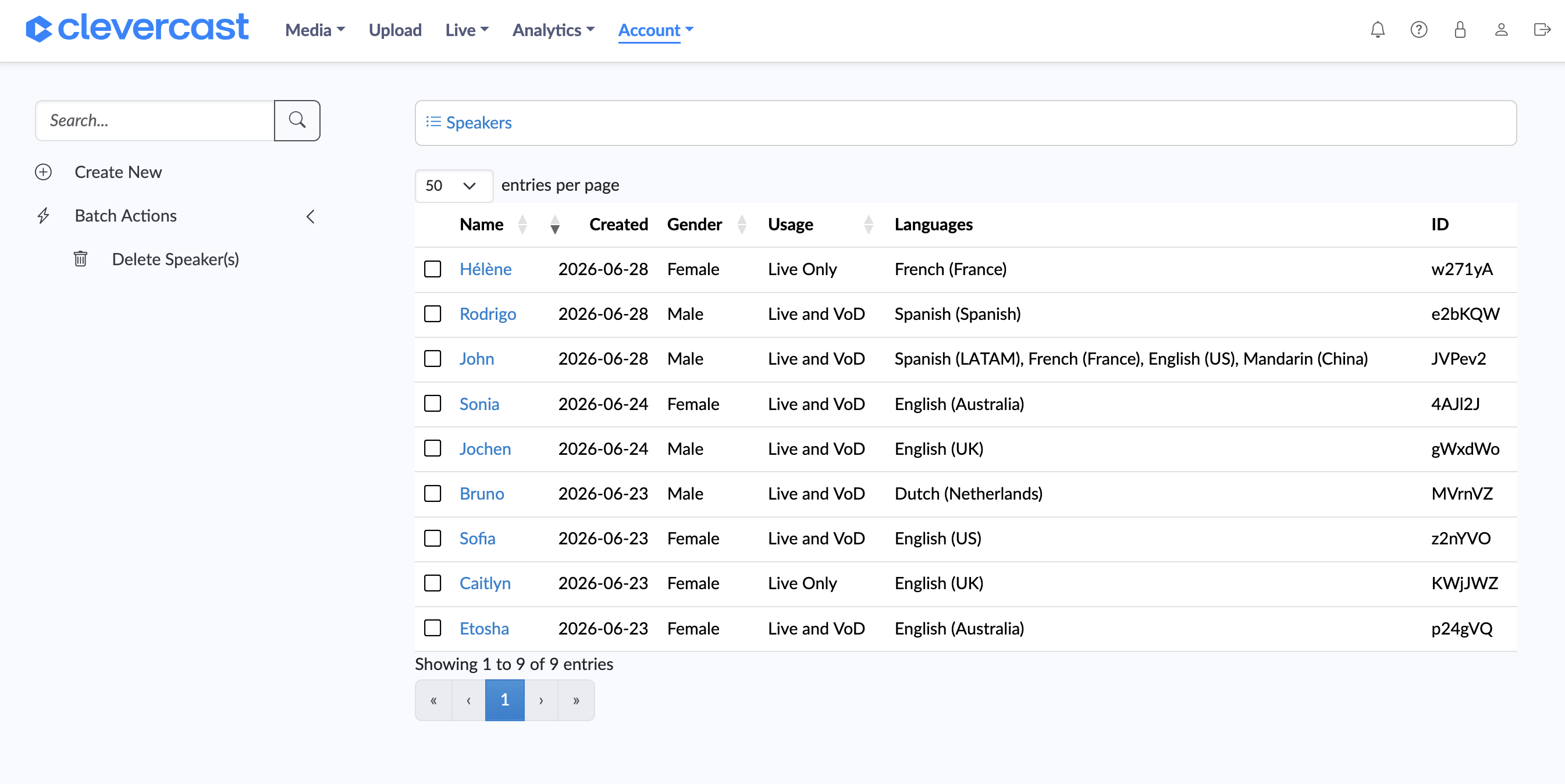
At the Account level, speakers are managed via the Account > Speaker Voices menu. This list contains all speakers who have been added to your account. They can be used while generating closed captions and speech translations in every live Event or Video-on-Demand in your account.
Manually adding speakers to your account
To recognize a speaker, Clevercast requires a short audio sample of their voice. You can manually provide this audio sample in one of two ways:
- Upload a short audio recording in .mp3 or .wav format yourself (or ask the speaker to upload it).
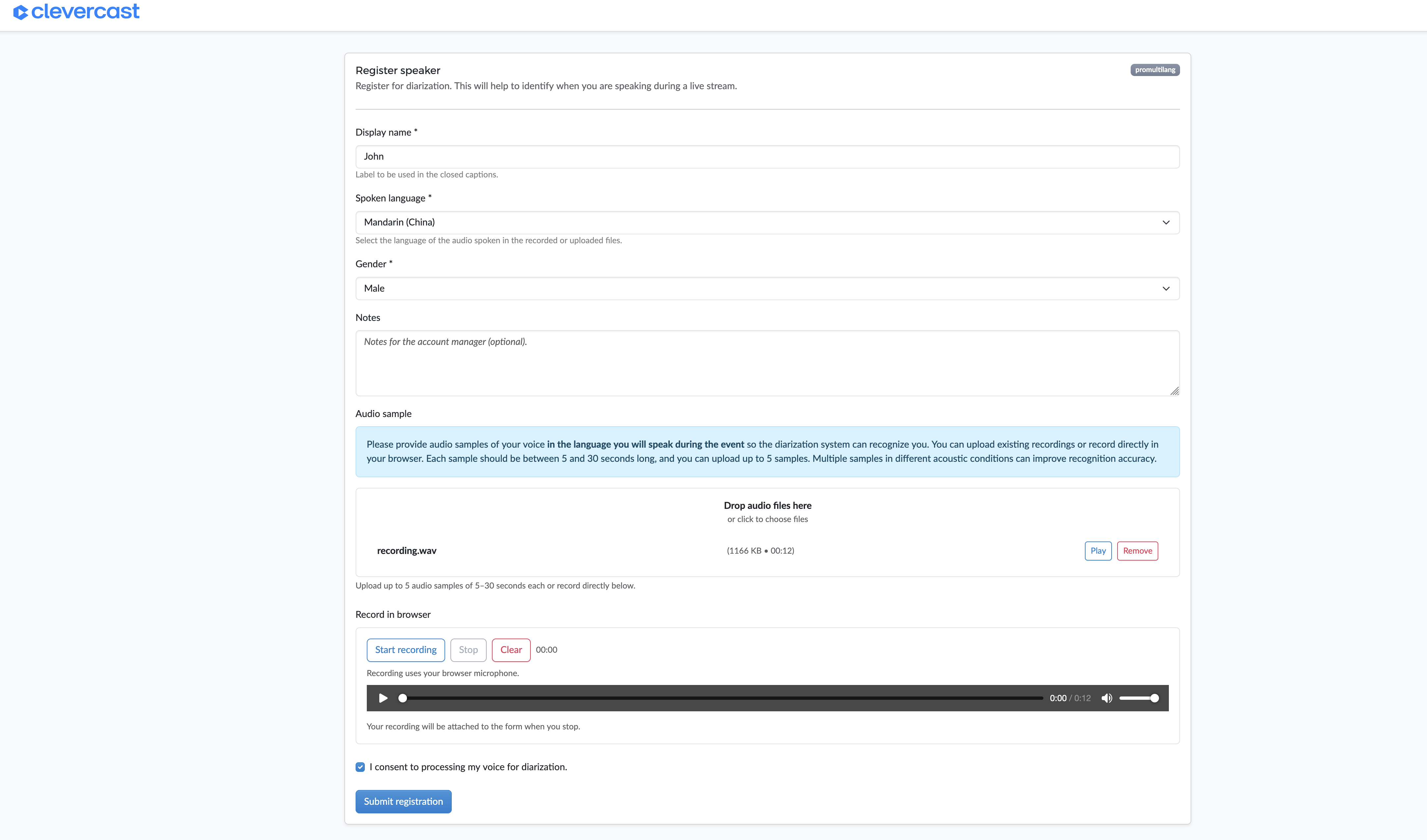
- Send speakers a secure link so they can record a short voice sample directly in their web browser.
This second option makes it easy to add speaker voices. Optonally, you can first add the speakers details in Clevercast, ensuring name, gender, and language are set correctly. Then copy the secure link, and send it to the speaker. The speaker only needs to open the link in a browser, press record, and speak during 5-30 seconds. After this, their voice will be automatically added to the list in Clevercast.
Once a voice sample has been added for a particular language, that speaker can be selected for any live stream and/or Video-on-Demand that uses that language. This also works if multiple languages are spoken in a live stream.
If a speaker speaks multiple languages during livestreams and/or VoD recordings, we recommend recording at least one audio clip for each language. To increase speaker recognition, you can record up to 5 clips per language (though usually one clip is sufficient). You can continue to create and add speakers during a livestream.
Automatically adding speakers to your account
During a live event, Clevercast can automatically detect unknown speaker voices. Speakers who are automatically detected and (automatically or manually) approved during an event, are also added to the account's speaker voices list. See below for more info.
'Speakers' tab (Event)
Every AI event has a 'Speakers' tab. This is where you manage the speakers who will appear in a specific live stream. There are two ways to add speakers to an event:
- Manually: select the known speaker voices (which were previously added to your account) to participate in the live stream, and add them to the event.
- Automatically: let Clevercast detect unknown voices in the live stream. Depending on the settings, these new speakers will be approved automatically or manually (see below for the role of approval).
When a new known speaker starts talking, their name is automatically displayed in the closed captions and transcripts. If a speaker has not been added to the Speakers tab, they are treated as an unknown speaker; instead of the name, "--" is displayed in closed captions.
In AI Audio Translations, Clevercast automatically assigns a different synthetic voice to each recognized speaker, matching the speaker's gender. This makes translated conversations easier to follow by preserving the distinction between speakers.
Settings
The 'Settings' panel contains two settings:
- 'Detect unknown speakers': this ensures that Clevercast automatically detects the voices of unknown speakers and displays them in the 'Detected Speakers' panel (see below).
- 'Automatically approve detected speakers': this ensures that detected speakers are automatically used for speech translations, as described above (by way of a matching gender and different voice). If this option is not enabled, detected speakers will only be used after they are manually approved by a Clevercast administrator.

Speakers Detected
If 'Detect unknown speakers' is turned on and 'Automatically approve detected speakers' is turned off, any detected speakers first appear in the 'Speakers detected' panel with the detected gender and a random name. Additionally, a short video clip is rendered, making it easier to identify the speaker.
You can approve or reject a detected speaker. Before approving a speaker, edit their name and check if the gender is correct. After you press the 'Approve' button, the speaker will be transferred to the 'Speakers' panel, and used in closed captions (and/or on-site transcriptions) and audio translations.
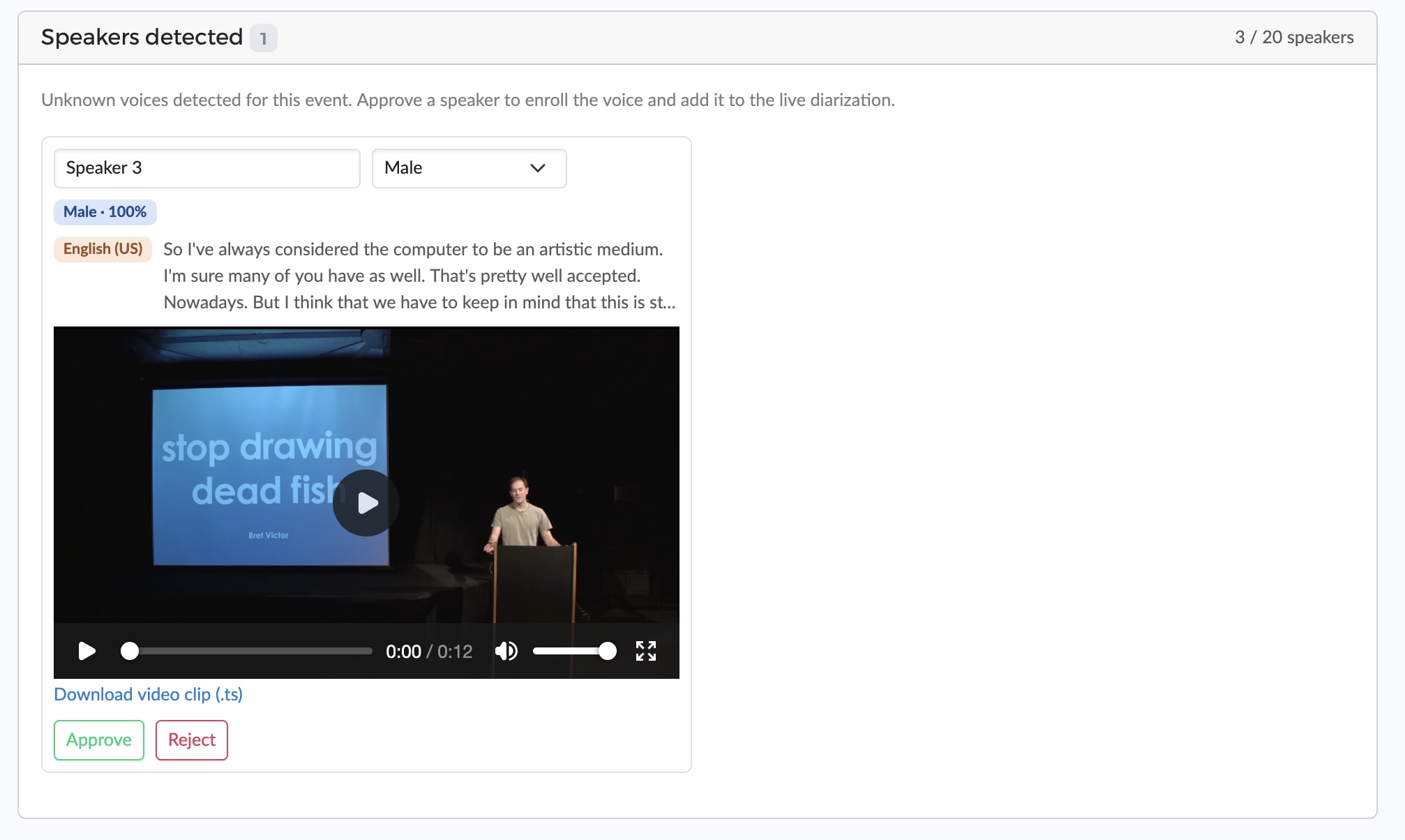
Note in case of an on-site plan, which only involves audio being broadcasted, an audio clip and text transcript are rendered, instead of a video clip.
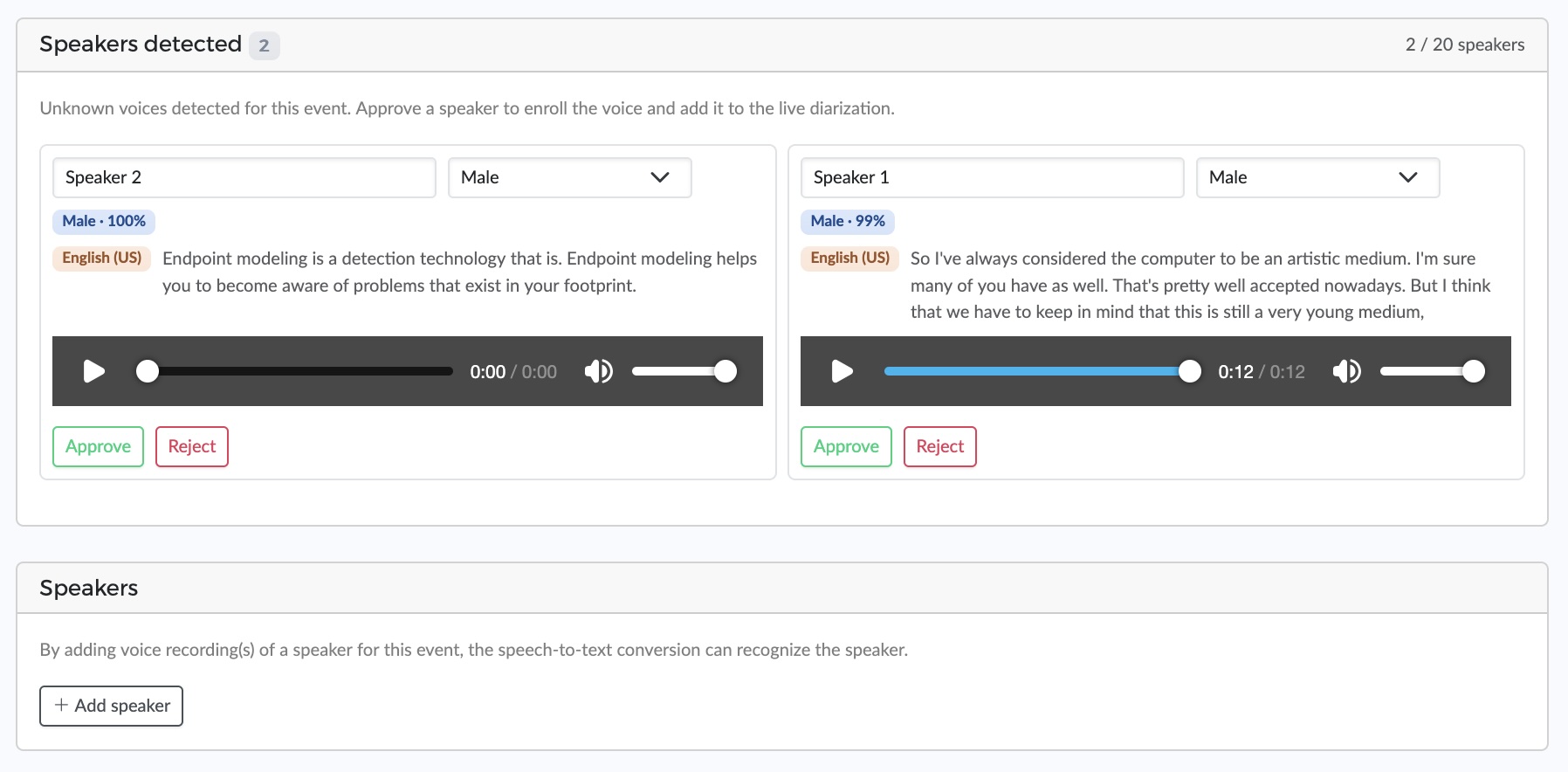
Note: If a speaker is already known within an event, their voice should be recognized by the AI and therefore not be detected as a new speaker. However, in cases like low-quality audio, or someone speaking multiple languages, it is possible that a known speaker may not be recognized. During an event, the easiest option is to give this 'new' speaker the same name. Afterwards, you can merge the two speakers via the Account menu.
Speakers
The 'Speakers' panel contains all known speakers for an event. Speakers can be added to this panel in 3 different ways:
- by manually adding known speakers from your account (see the 'Manually adding speakers' section below). This can also be done without auto-detection.
- by approving speakers that were auto-detected during the event (see the 'Speakers Detected' section above)
- through auto-approval of detected speakers (see the 'Auto-approved speakers' section below)
Note: speakers that are auto-detected and added to the 'Speakers' panel during an event, are also added to the account list of known speakers. This way, you can also use them in other events.
Auto-approved speakers
If both 'Detect unknown speakers' and 'Automatically approve detected speakers' are turned on, detected speakers appear directly in the 'Speakers' panel with their detected gender and a random name.
A video clip of the detected speakers is displayed, allowing you to identify the speaker.
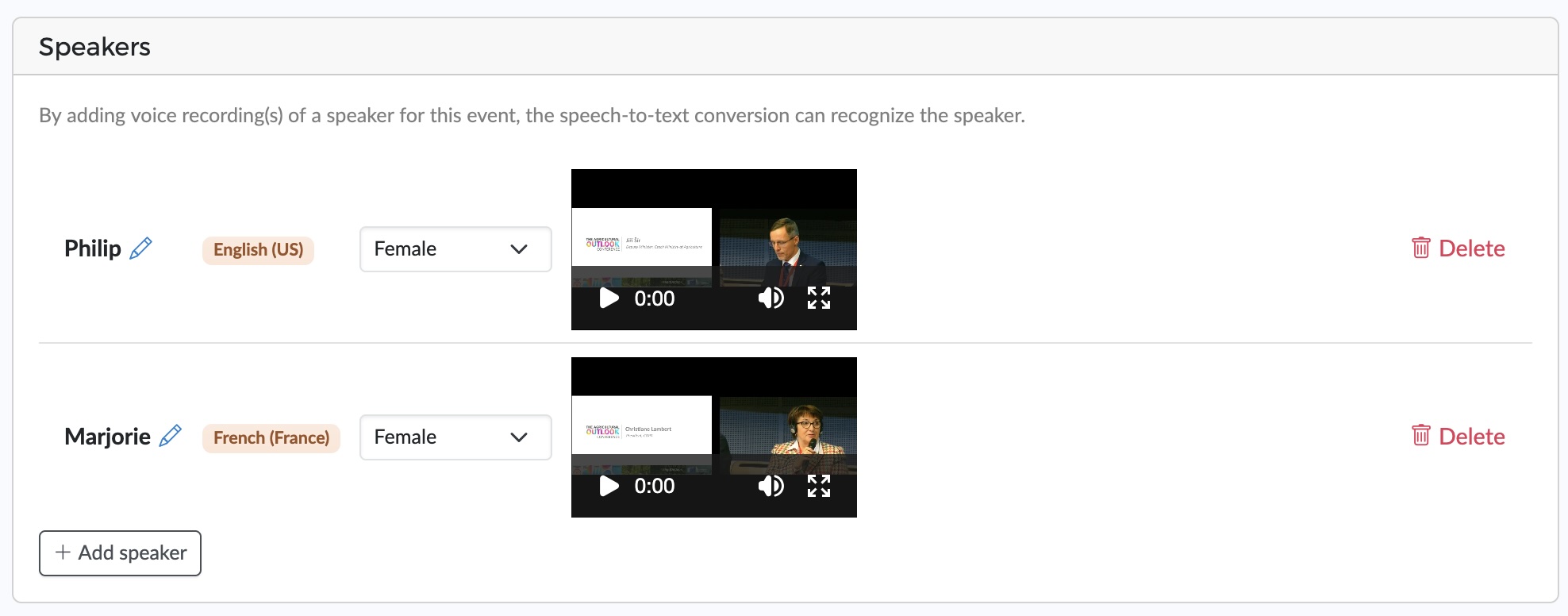
Note: if you have an on-site plan, an audio clip is shown instead.
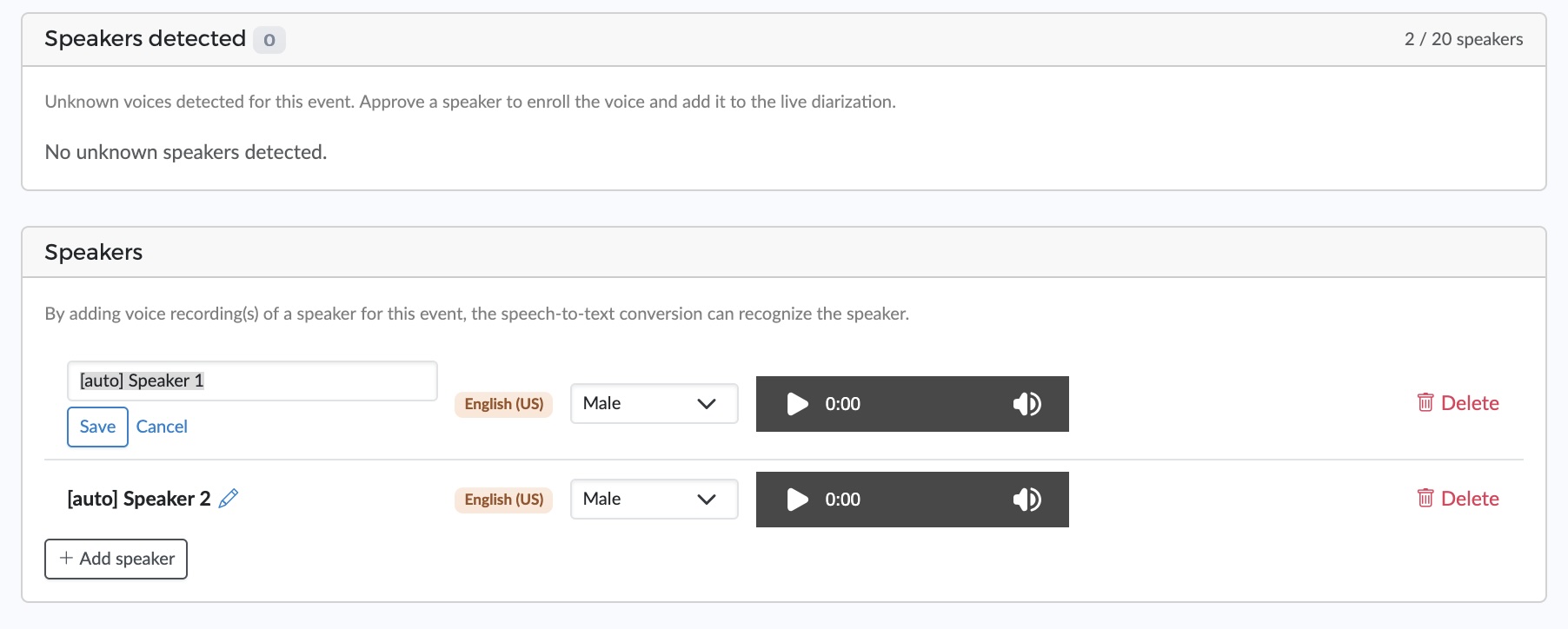
Important: the behavior of auto-approved speakers differs between captions and audio translations:
In closed captions and on-site transcriptions, the speaker's name will only be displayed after it is edited by a Clevercast administrator. As long as the name has not been edited, the speaker name will be considered unknown.
For speech translations, on the other hand, the auto-approved speaker is used immediately. The AI voice that is used for this speaker will match the detected gender and a distinct AI voice will be used (if available). Note: if you update or delete an auto-approved speaker manually, these changes will be reflected in the speech translations.
Manually adding speakers
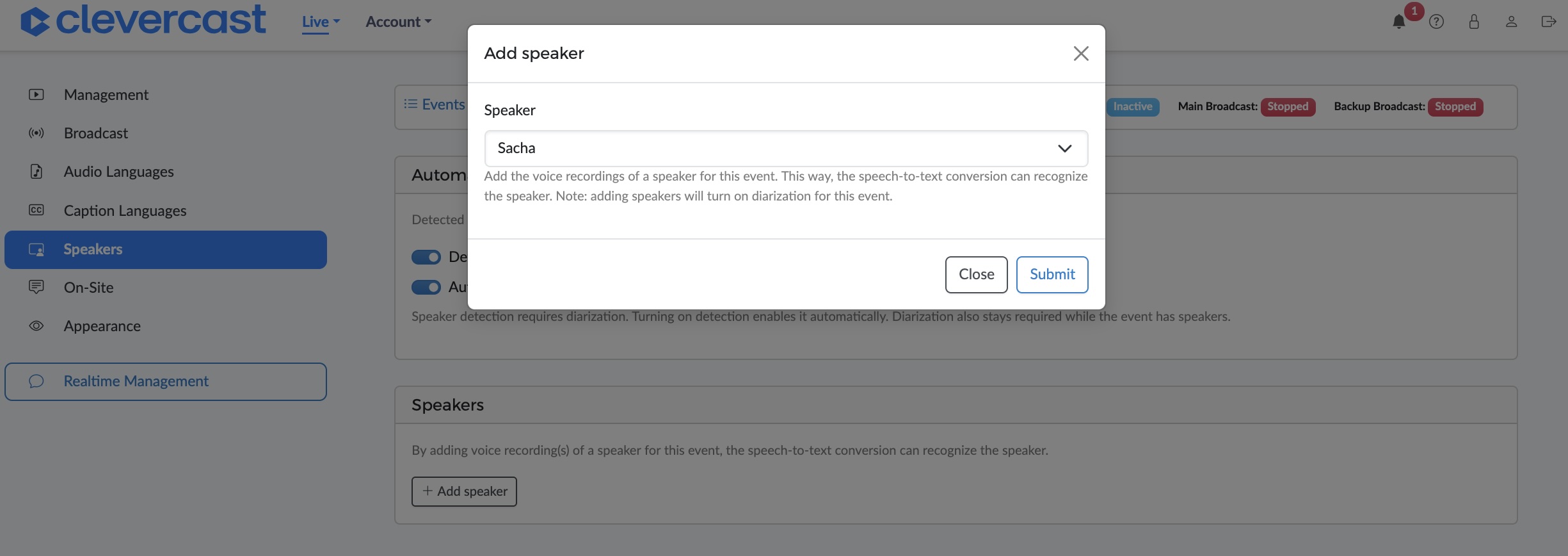
To use known speakers from your account in a specific event, press the 'Add speaker' button in the 'Speakers' panel and select the known speaker. This can be done either beforehand or during a live broadcast. This also works without automatic speaker detection being enabled.